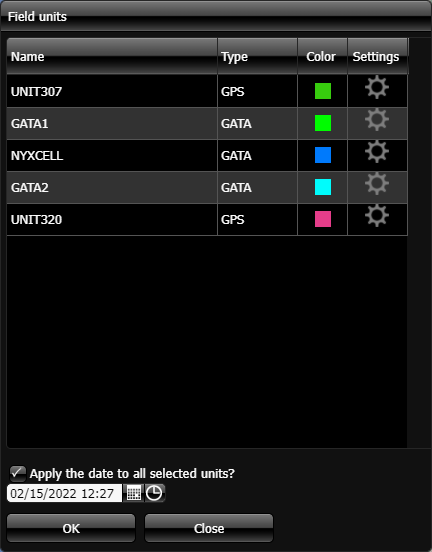
Field units dialog box
The Field units dialog box is opened by clicking  on the GATA panel. The field units listed are either GAR and GATA units, Bluetooth GPS Cradlepoint units, and Over-The-Air units that have been selected on OSS-ESPA's Sentinel screen by the monitor for your case; that is the case you currently have selected on the Case Settings dialog box.
This dialog box also allows you to open the Field unit color dialog box and the Unit settings dialog box which allow you to select how the field units and their data are displayed on your map. You can set not only the appearance of your field unit on your map but also that of other personnel's field units.
NOTE: Any changes you make to a field unit's settings will also change for all GATA and OSS-ESPA users, and in all cases.
 Color
Color
Click on a field unit's color to open the Field unit color dialog box. This dialog box allows you to select which color you want the field unit's location and trails displayed in on the map. This color is then applied to the selected field unit throughout your account. Therefore if you change the color, it will also change for all users and in all cases.
 Settings
Click to open the Unit settings dialog box. This dialog box allows you to configure which campaign date is displayed and how the field unit data is displayed on the map.
Apply the date to all selected units?
By default this is set to the current date, however if you have a specific campaign date you want used for all the field units then select the date and time of the campaign. Note, this setting overrides any date you have selected in an individual field unit's Campaign date.