Case Settings dialog box
The Case Settings dialog box is opened by clicking  on the GATA panel. It allows you to sign into your OSS-ESPA account and select which of your intercepts you want to view.
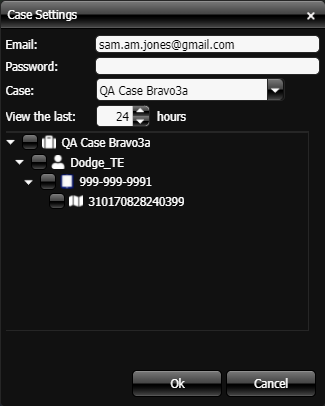
 Email and Password
Enter your OSS-ESPA email address and password then click OK to sign in. The software is reloaded and synchronizes with OSS-ESPA. On returning to this dialog box your cases are automatically listed in Cases.
You do not have to sign in each time you open the software. You only need to sign in on your first use, or after another user has been signed in.
Cases
Once you are signed into OSS-ESPA using your Email and Password all your cases are automatically listed. Select the case you are monitoring. The case's people, phones and CASEIDs (LIIDs) are now listed.
View the last x hours
Select the previous number of hours you want to view for both:
-
active and historical trails, and
-
active calls.
The oldest data is removed from the screen when it becomes outside of the selected time period. The maximum value is 96 hours (4 days). The default is 8 hours.
Phones
This displays all the people, phones and CASEIDs (LIIDs) for the selected case. Select which ones you want to retrieve the data for. The data associated with these is then populated on the Current activities tab, Last known tab and the map.
If the i-case associated with the phone is either disabled or no longer valid it will display as  .
.