Direction finder pop-up
The Direction finder pop-up displays information gathered from GATA field units which can help you find devices of interest. The pop-up displays the current or last known location, the signal strength, the line of bearing, and the distance from the device.
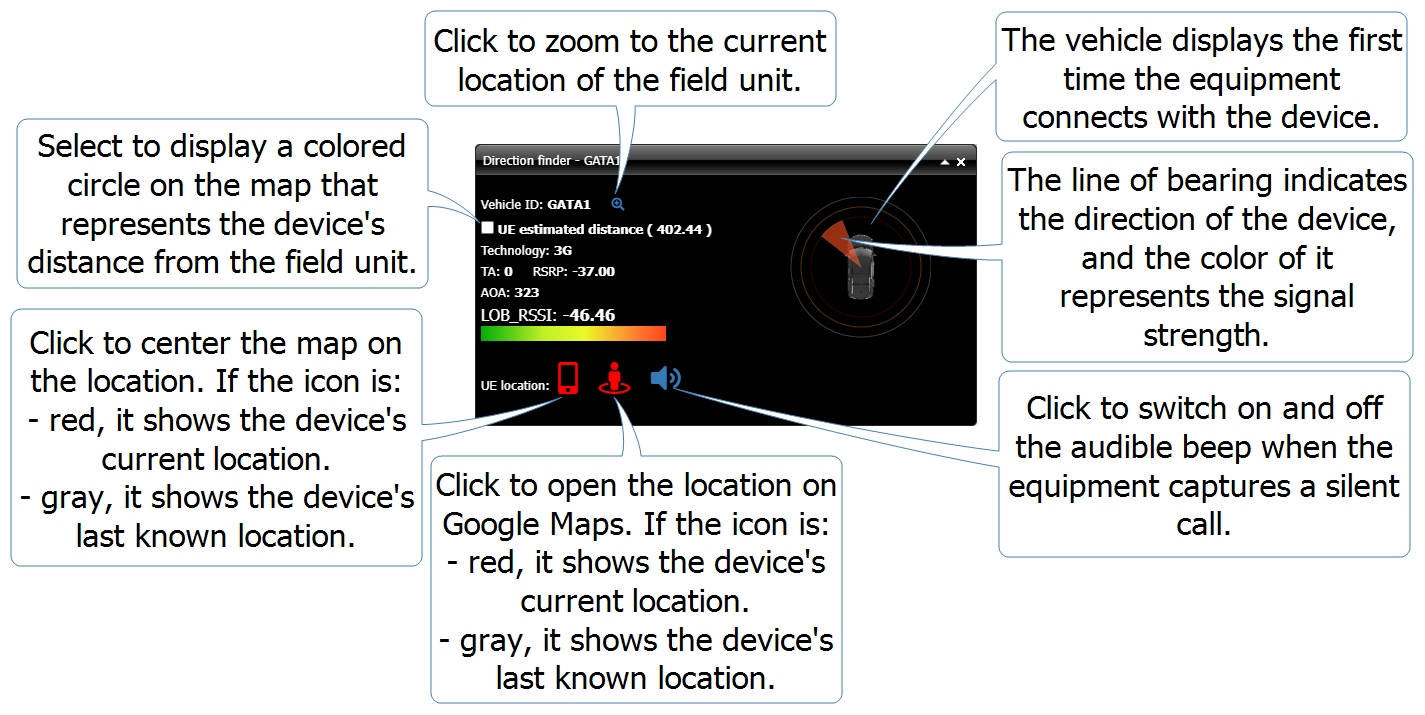
The following graphic explains the features of the Direction finder pop-up.
This graphic shows how the pop-up appears with red icons when the equipment is connected to the device via a silent call.
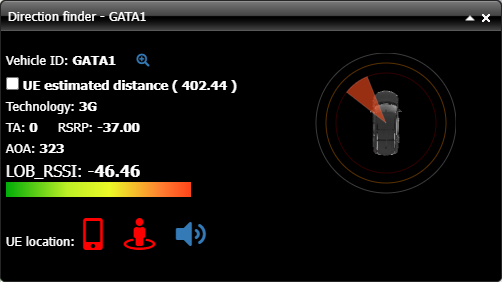
If any readings are invalid then:
-
No location and no vehicle are displayed when the AOA value is invalid.
-
No signal and no signal strength bar are displayed when the LOB_RSSI value is invalid.
To view the Direction finder pop-up you must have it selected to display on the GATA Views dialog box. You can also select:
-
Use transparent background in direction finder window to display it with a transparent background which is useful if you are overlaying it on the map as it allows you to continue to view the street layout.
-
Floating direction finder window which allows you to move it over the entire map rather than limiting it to the field unit tab.
For further information on using the Direction finder refer to Monitoring movement on the Map View.

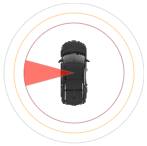
The vehicle displays the first time the equipment connects with the device.
The line of bearing indicates the direction of the device, and the color of it represents the signal strength.

Click to zoom to the current location of the field unit on the map.
UE estimated distance
Select to display a colored circle on the map that represents the device's estimated distance from the field unit. This, along with the line of bearing can help you identify the location of the device.


Click to open the device's estimated location on Google Maps. If the icon is:
-
red, the equipment is connected to the device and the location shown is the device's current location.
-
gray, the equipment is not currently connected to the device and the location shown is the device's last known location.


Click to center the map on the device's estimated location. The location is displayed on the map using this same icon. If the icon is:
-
red, the equipment is connected to the device and the location shown is the device's current location.
-
gray, the equipment is not currently connected to the device and the location shown is the device's last known location.

Click to switch on and off the audible beep which occurs when the equipment captures a silent call indicating that it is connected to the device.