Using an external GPS device
This topic describes how to use an external GPS device to provide GATA with your location so that your movements can be monitored if you are not using a GAR or OTA unit. For an overview of the external GPS tracking feature refer to the Read GPS from external device dialog box.
-
On the Map View, click
 on the left of the map.
 The GATA panel opens.
-
Click
 .
.
The Read GPS from external device dialog box opens.
-
If prompted, allow access to your location.
-
In COM Port, select the USB port your GPS device is connected to.
-
Click Start.
Your location is now identified on the map with a marker, this information is updated every second.
NOTE: If this is the first time you have set up this unit then you must ensure that it is configured on OSS-ESPA's Sentinel screen to display in the correct cases. For further information refer to "How to display GPS Tracker and field units on the Sentinel screen" in the OSS-ESPA Help.
-
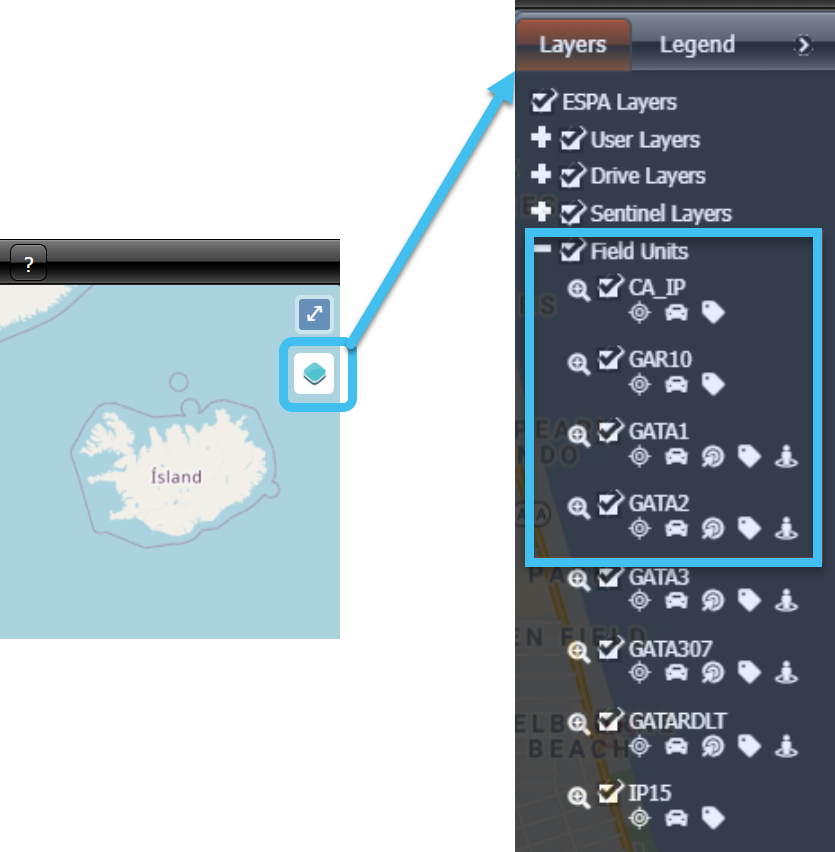
If you want to view the movements of other devices, you can select them from the Layers panel. Click
 at the right-side of the map to open the panel, then expand Field units and select the devices you want to display.