Performing a deconfliction search
You can perform a deconfliction search, which allows you to:
-
search data on other agency's OSS-ESPA accounts, and
-
perform a deep search for phone numbers in your OSS-ESPA account and identify other agency accounts with the number
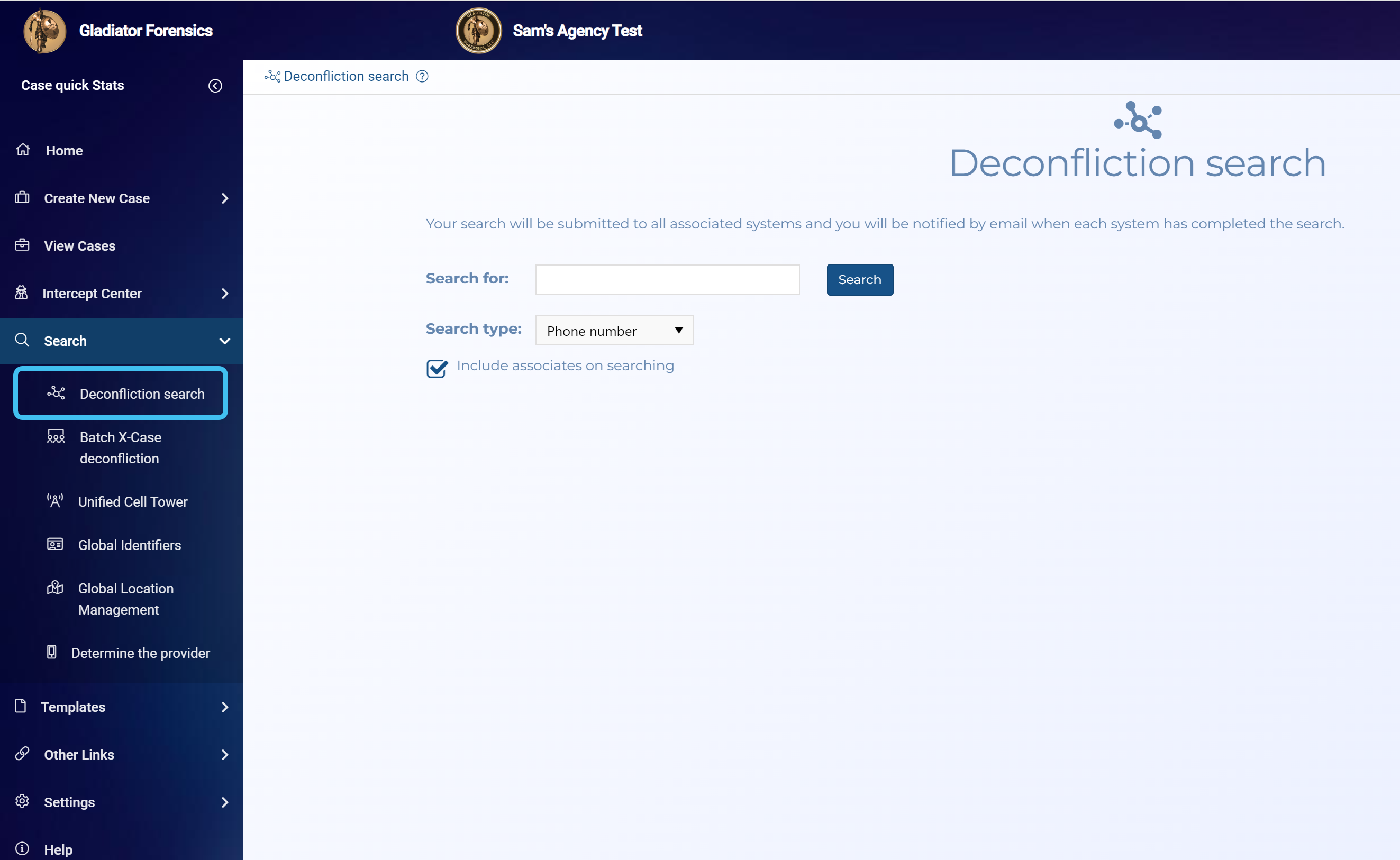
from the Deconfliction search screen, which is opened from the main menu by clicking Search then Deconfliction search.
 How to perform a deconfliction search using the Identifier tab
-
On the main menu click Search, then click Deconfliction search.
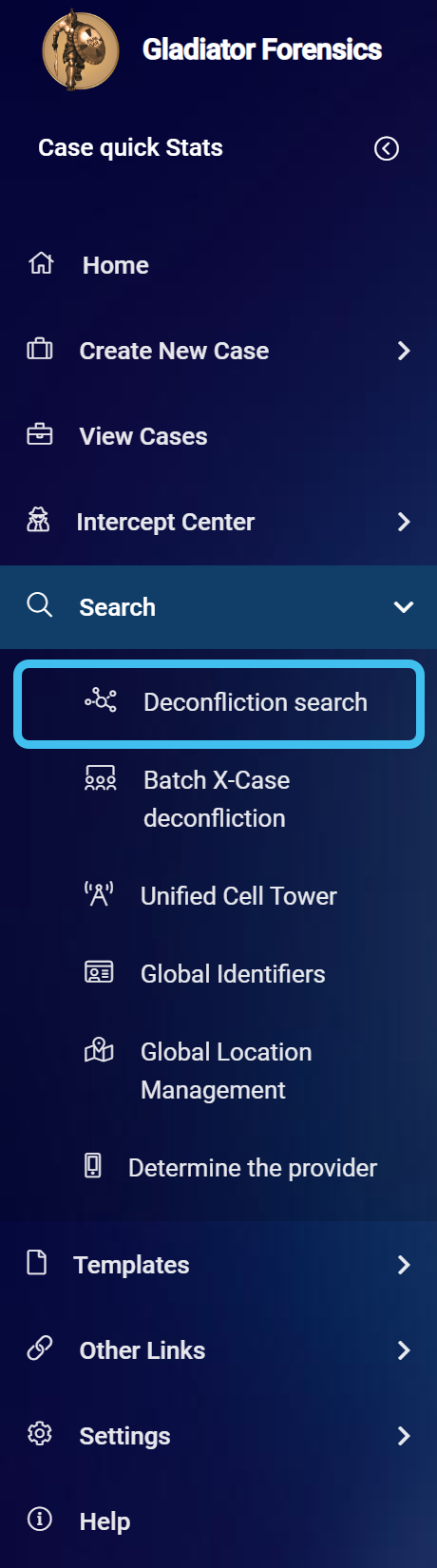
The Deconfliction search screen opens.
-
In Search for, enter the string that you want to search for.
-
In Search type, select the type of data you are searching on. Searches can be performed on: license plates, names, phone numbers, IMSI, IMEI and social media data. Note, when searching on an IMSI or IMEI set Search type to Phone number.
-
If you want to include associates details in the search then ensure Include associates on searching is selected.
-
Click Search.
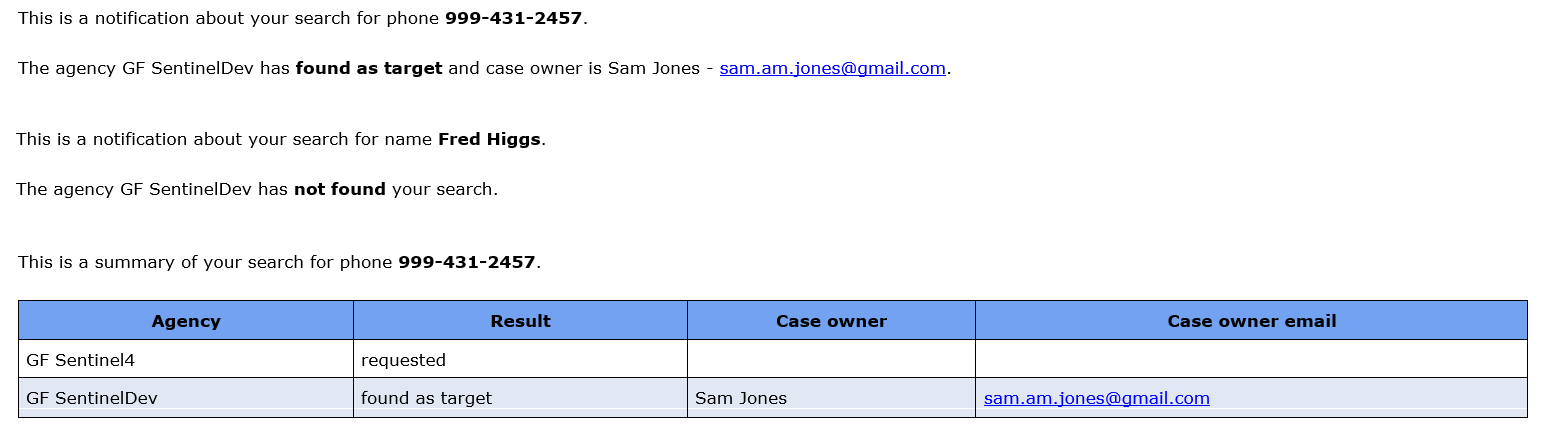
The search results are returned by email, typically within five minutes. An email is received from each agency along with a final summary email that combines all the agency results. Where a match is found, the case owner's email is included so that you can contact them if required.
An example is shown below of two email results from individual agencies, and also a summary email.
-
The results also appear in Local system deep searches. When the Status message column displays Completed with success, click
 to open the search results.
 -
In Local system deep searches click
then in the Search summary, click the item of interest to display the search results. You can also click on the info cards for further person details. For a target you can select a case name to view the phone's communications within that case, or for associates you can select the check-box to open their communications at the bottom of the screen.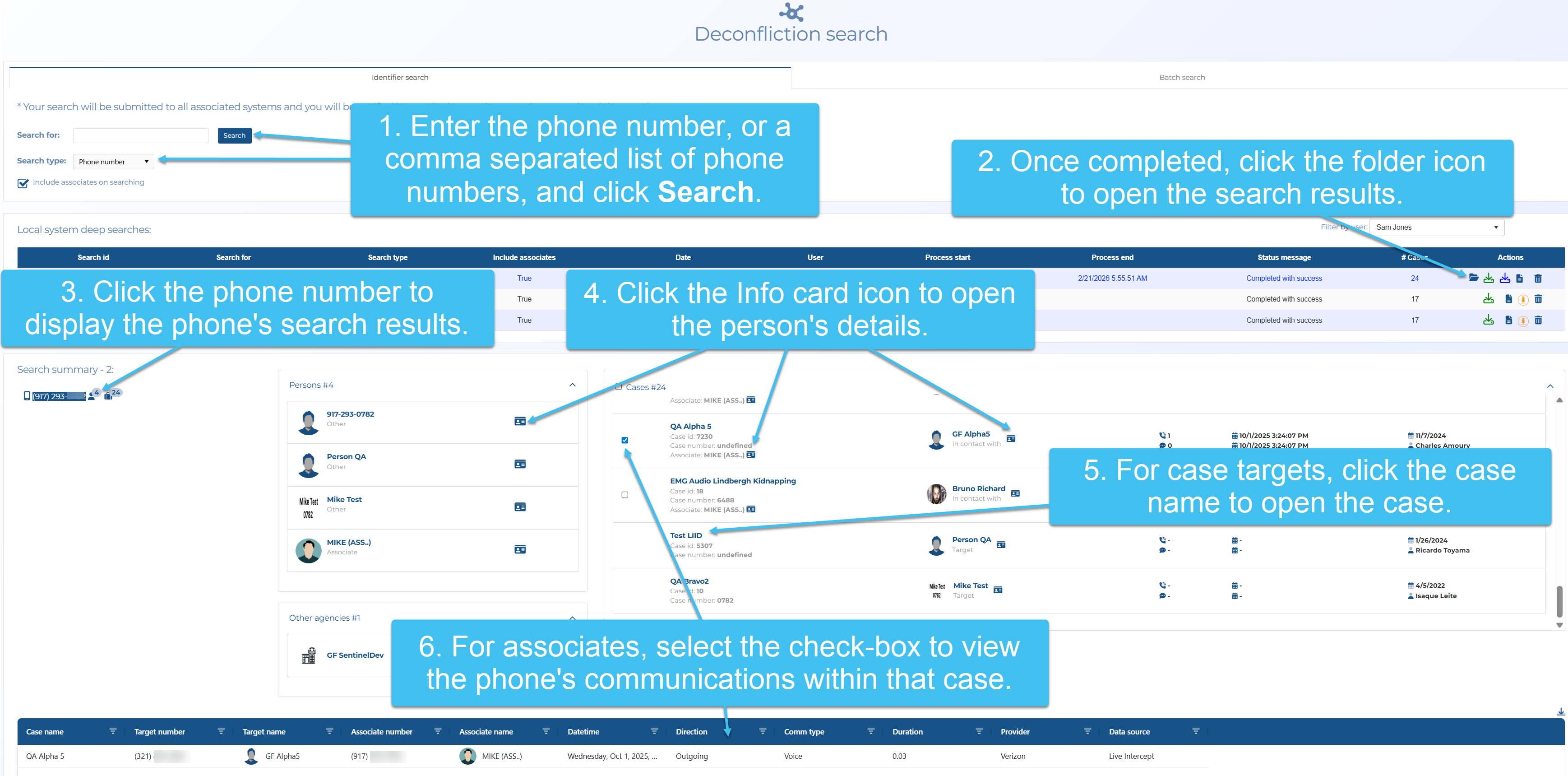
In addition to the search results displayed on the screen, you can also click
 to download an html file of the X-Case analysis and other agency matches, and click
  to download a csv file of the calls.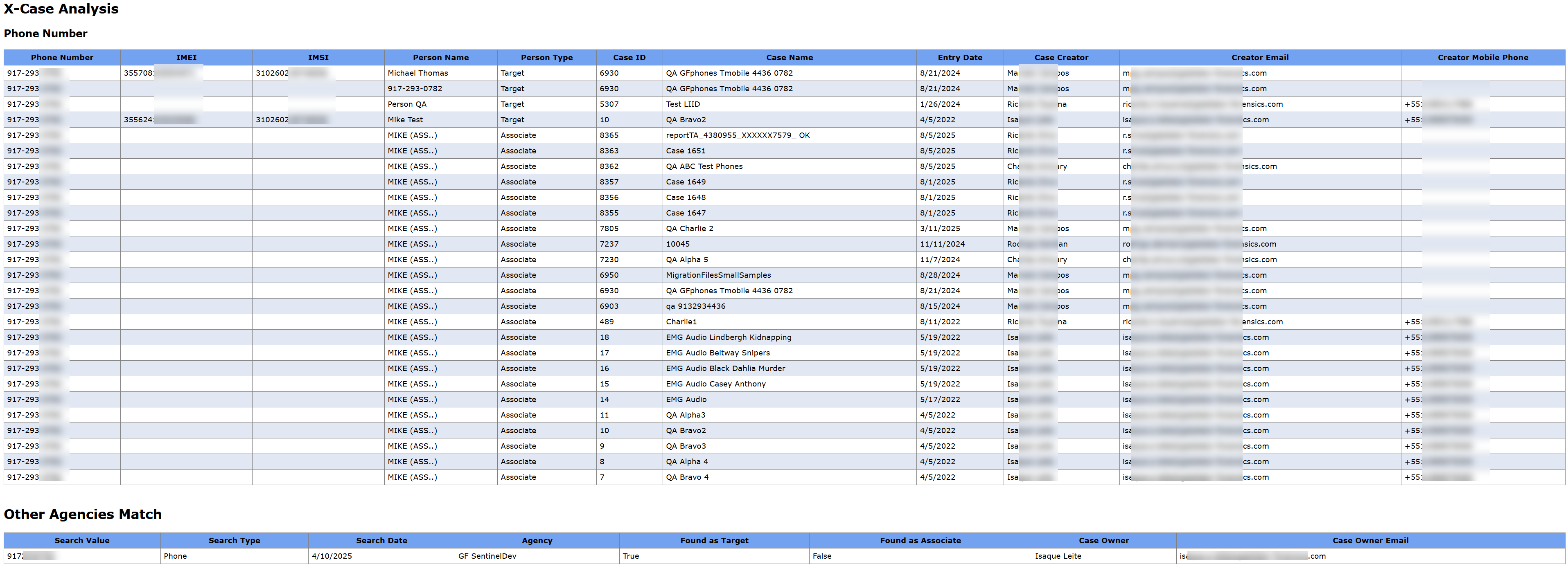

How to perform a deconfliction search using the Batch search tab
Performing a batch X-Case deconfliction search
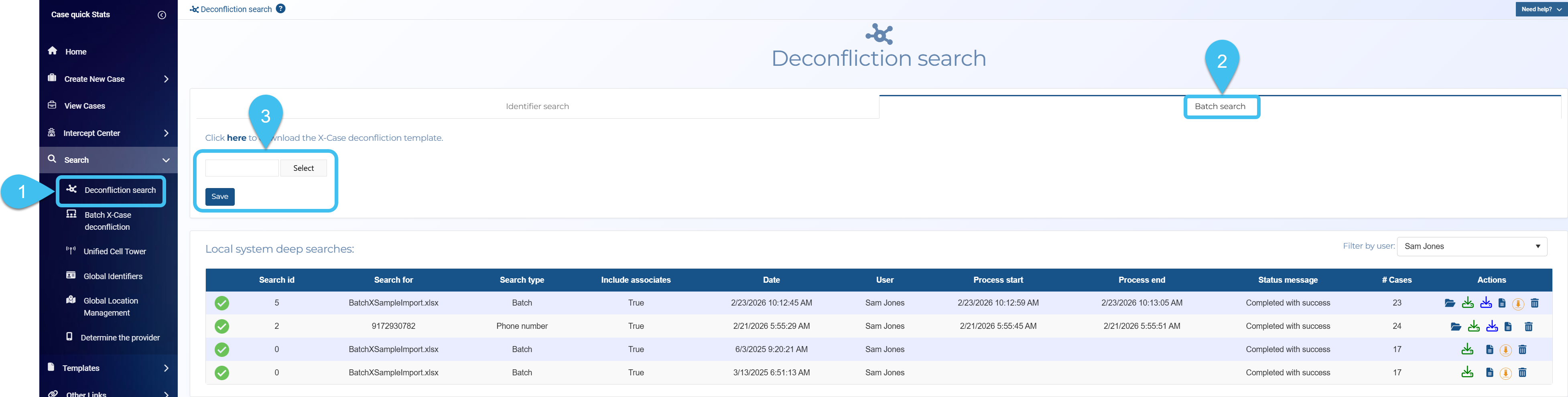
You can perform a batch X-Case deconfliction search, which allows you to perform an X-Case search on multiple identifiers at once, from the Batch tab of the Deconfliction search screen which is opened from the main menu by clicking Search then Deconfliction search.
-
On the main menu click Search, then click Deconfliction search.
The Deconfliction search screen opens.
-
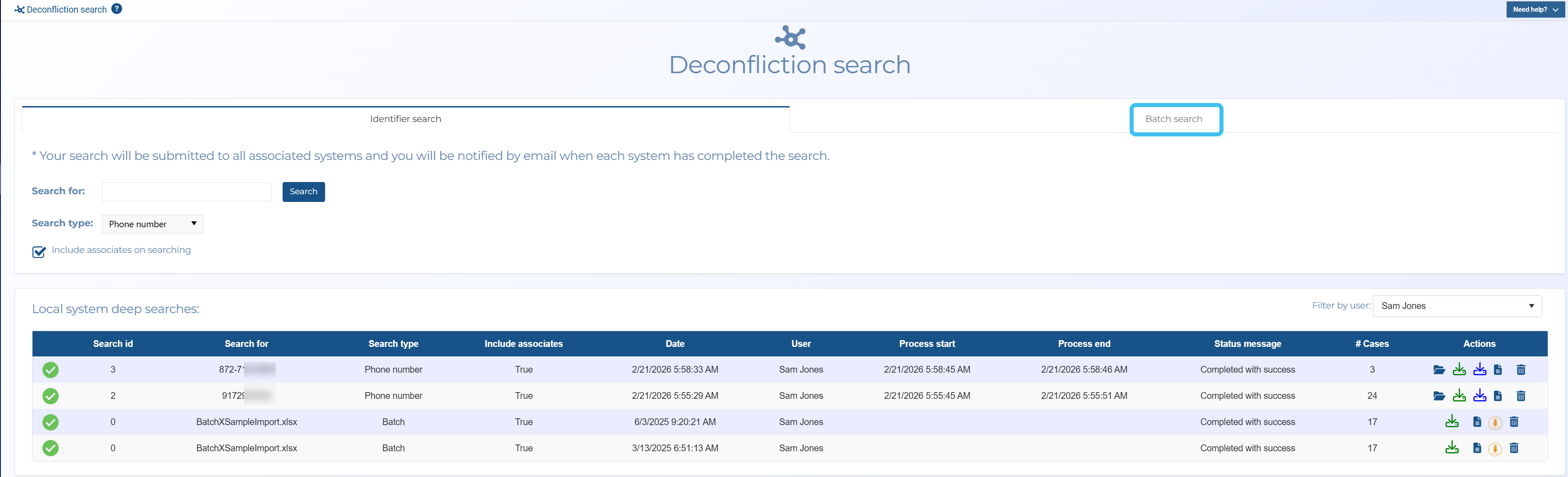
Click Batch search.
-
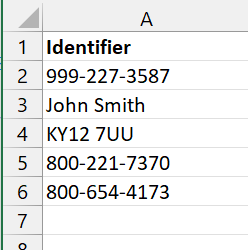
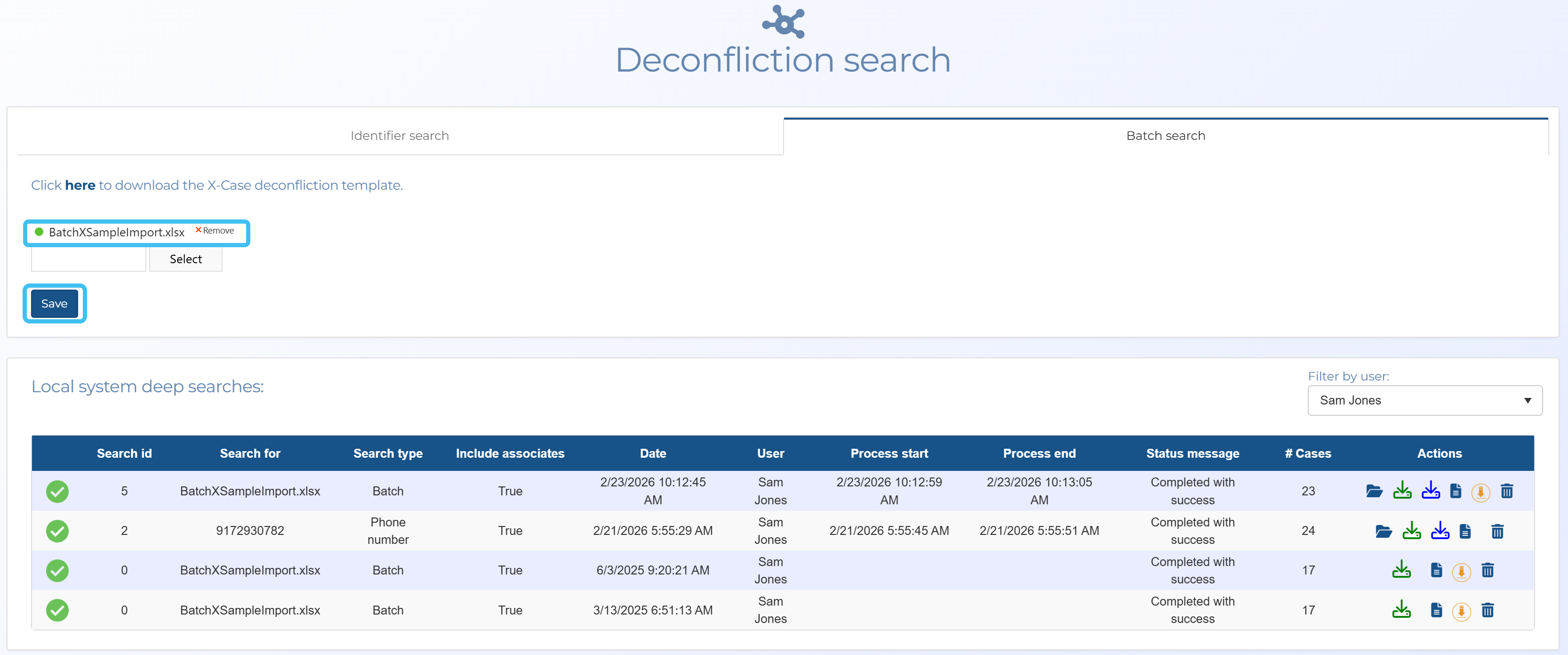
Click Select. Windows Explorer opens. Navigate to the folder and select the required file containing the list of the identifiers you want to search on in a column titled Identifier. Identifiers can be phone numbers, IMSI, IMEI, names, license plates, and social media accounts. There is a sample template available for download if you require it.
-
Once your file has uploaded, which is identified by the green circle, click Save.
-
Results appear in Local system deep searches. When the Status message column displays Completed with success, click
to open the search results.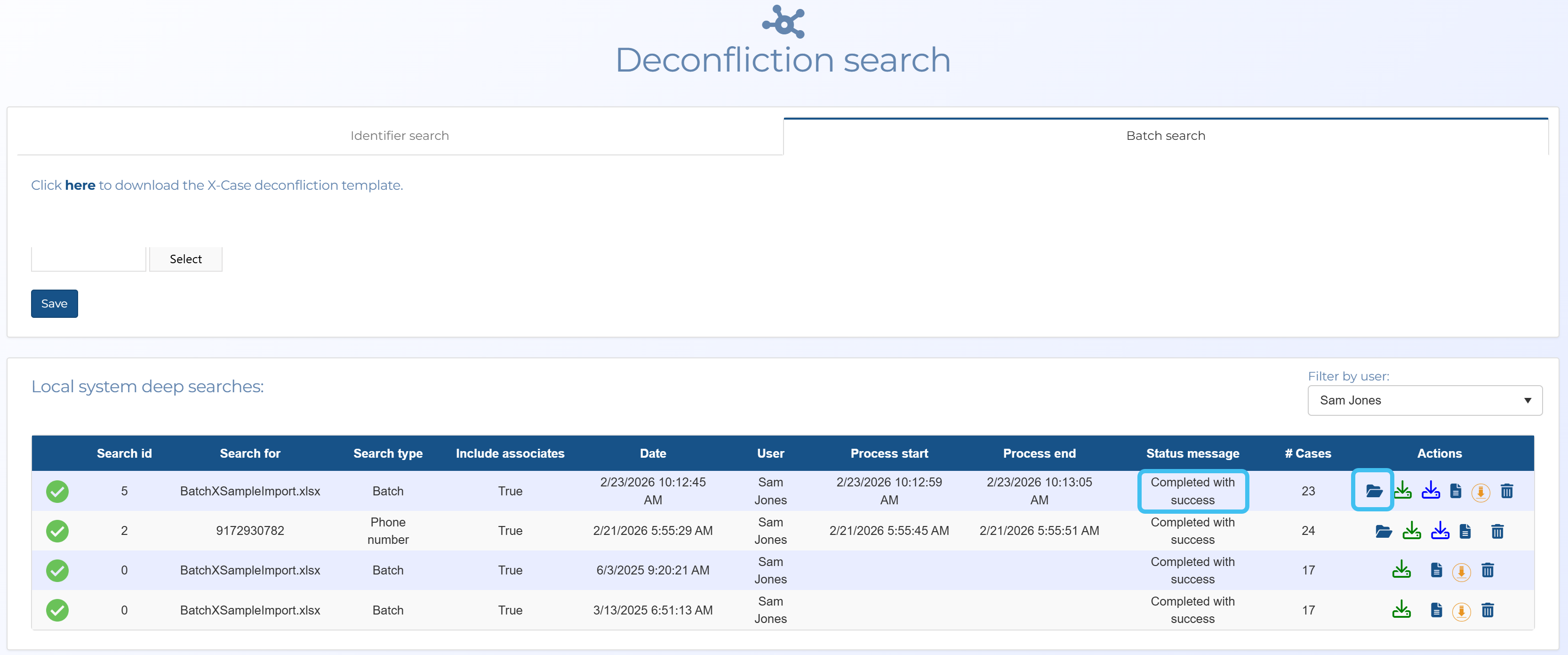
-
In Local system deep searches click
then in the Search summary, click the item of interest to display the search results. You can also click on the info cards for further person details. For a target you can select a case name to view the phone's communications within that case, or for associates you can select the check-box to open their communications at the bottom of the screen.
In addition to the search results displayed on the screen, you can also click
to download an html file of the X-Case analysis and other agency matches, and click to download a csv file of the calls.