Configuring the login security
How to configure your account's login security
To define your account's requirements for Open Authorization (OAuth), user passwords and multi-factor authentication use the Login settings screen. To open, click Settings, Admin settings, then Login settings.
Click the link below for further details.
This topic details how to define your account's requirements for user passwords and multi-factor authentication.
-
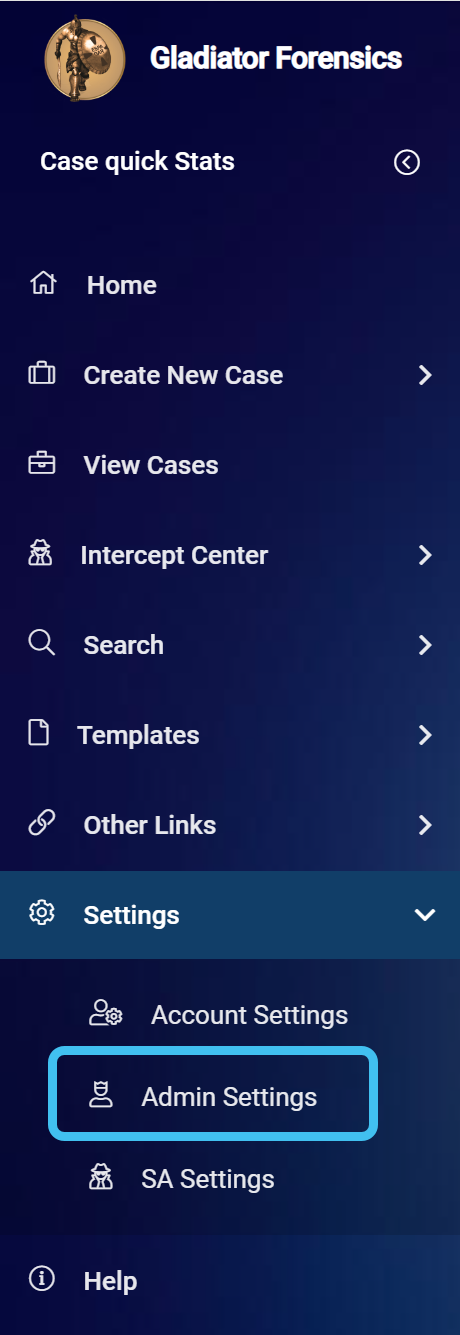
On the main menu click Settings, then click Admin settings.
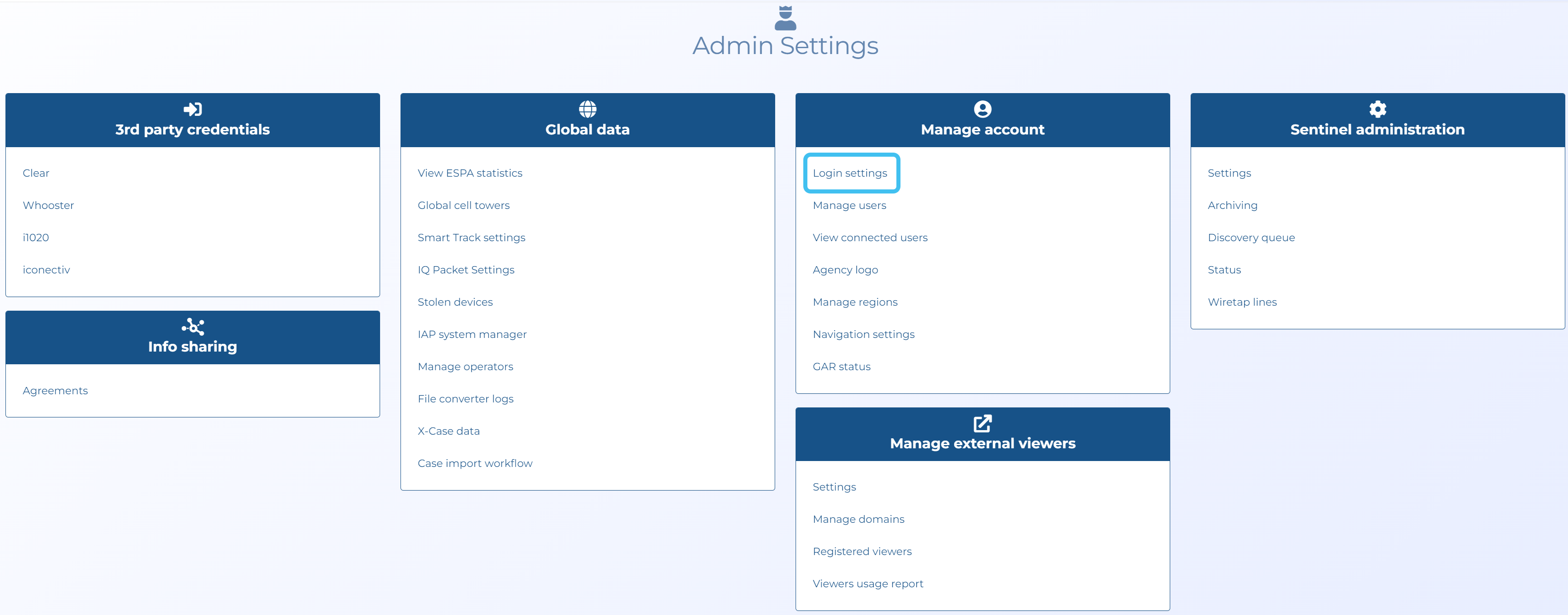
The Admin settings screen opens.
-
In Manage account click Login settings.
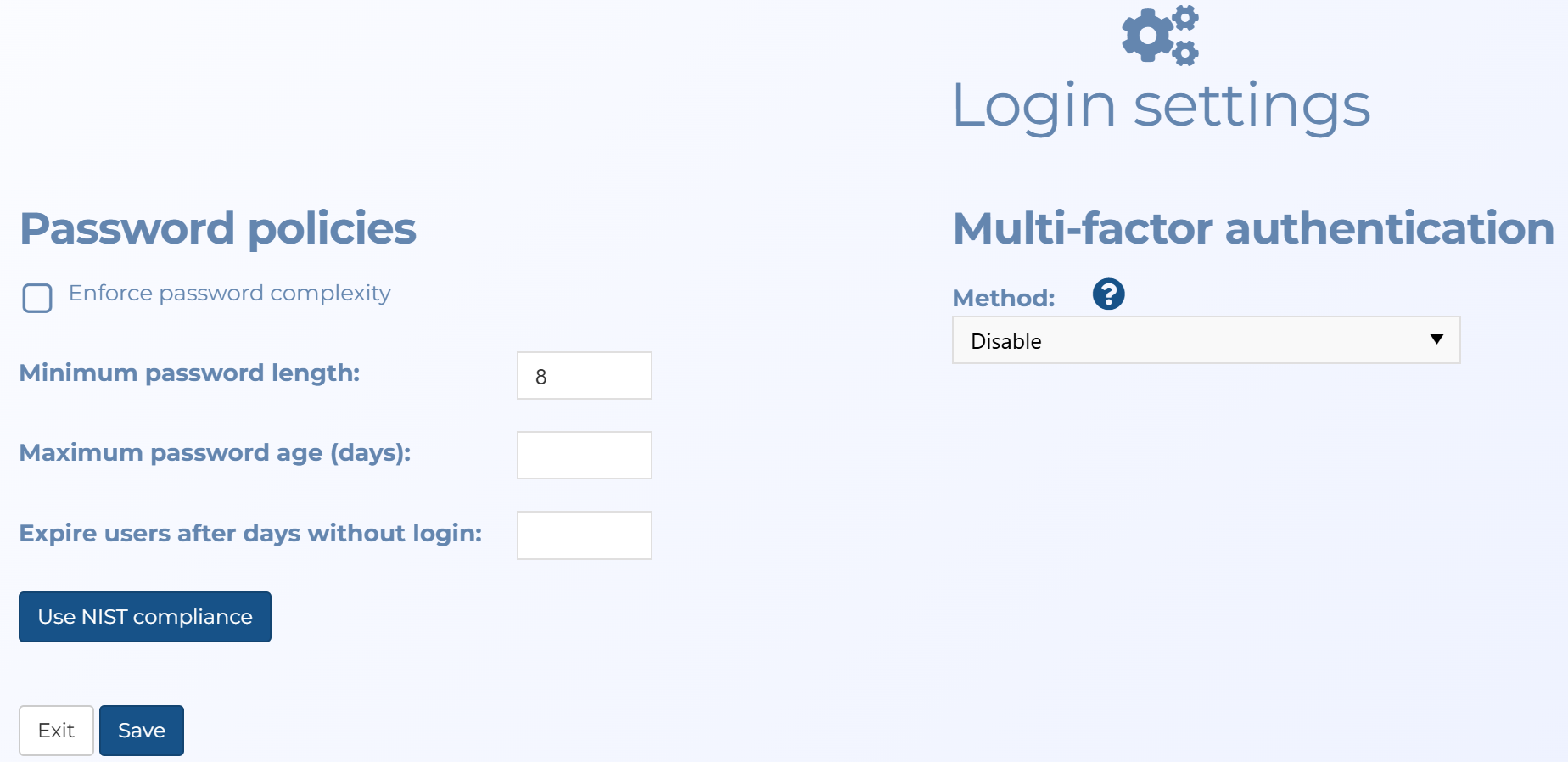
The Login settings screen opens.
-
If you want to enable OAuth for a domain:
-
Click Add domain. The OAuth domain configuration screen opens.
-
Ensure Active is selected.
-
Enter your server configuration details into the remaining settings.
-
Click Save.
-
-
Enter your Password policies and Multi-factor authentication.
Note, if you always require email authentication at the first log in of each day the SMS, SMS or E-mail, App authentication or App authentication or email methods also provide this if you select Request e-mail validation on first login of the day.
-
Click Save.
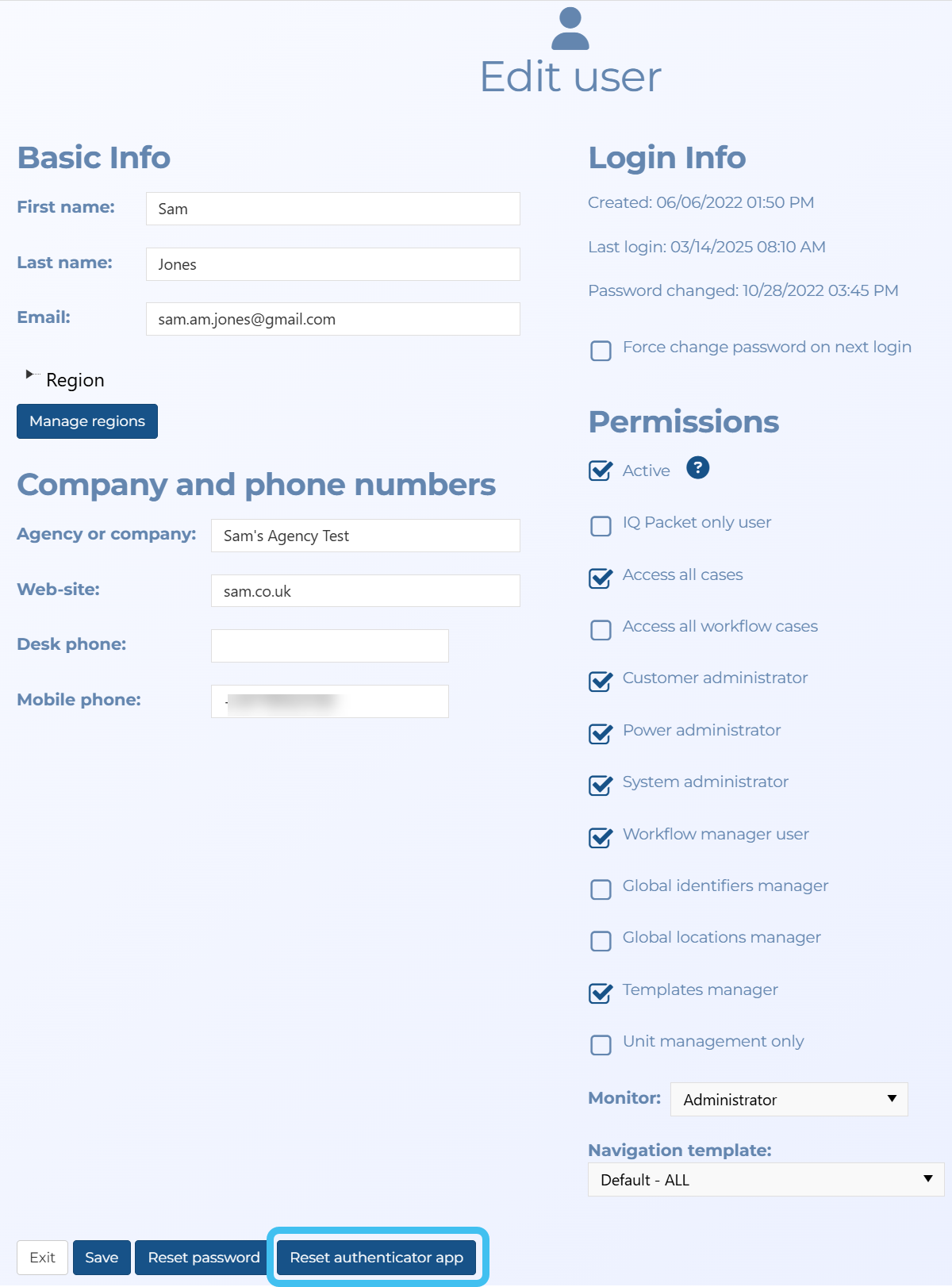
Note, if you have selected one of the App Authentication options and you ever require to reset the authenticator app for a user, so that the next time the user logs in a new QR code is displayed allowing them to register their new authenticator app, then click Reset authenticator app on the user's Edit user screen.